Cellar Overview
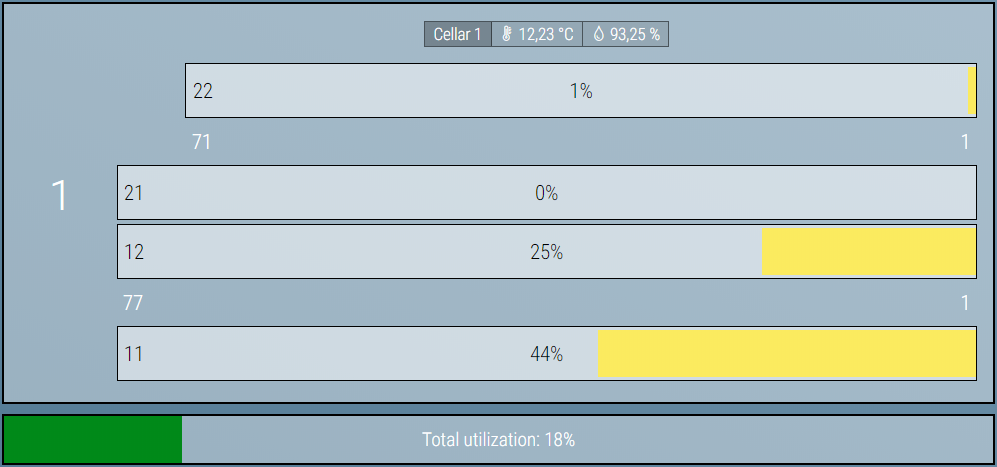 This is an overview of the ripening facility.
The rows are displayed according to configuration. The yellow bars in each row show the utilization of the rows.
The total capacity utilization is also displayed.
This is an overview of the ripening facility.
The rows are displayed according to configuration. The yellow bars in each row show the utilization of the rows.
The total capacity utilization is also displayed.
Clicking on a row takes you to the row display.
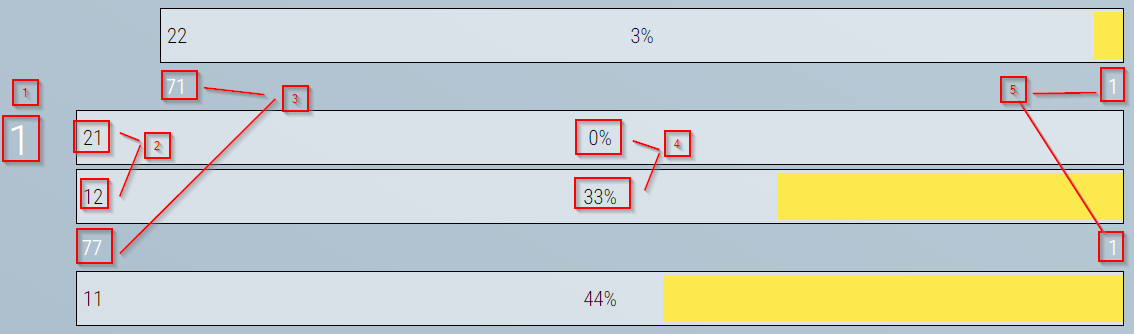
- Cellar Designation
- Row Designation
- Column Number left
- Fill Level Row
- Column Number Right
Optionally, the current humidity and temperature of the respective climate zone (e.g. cellar) are also displayed

Note
Climate Zone (optional)
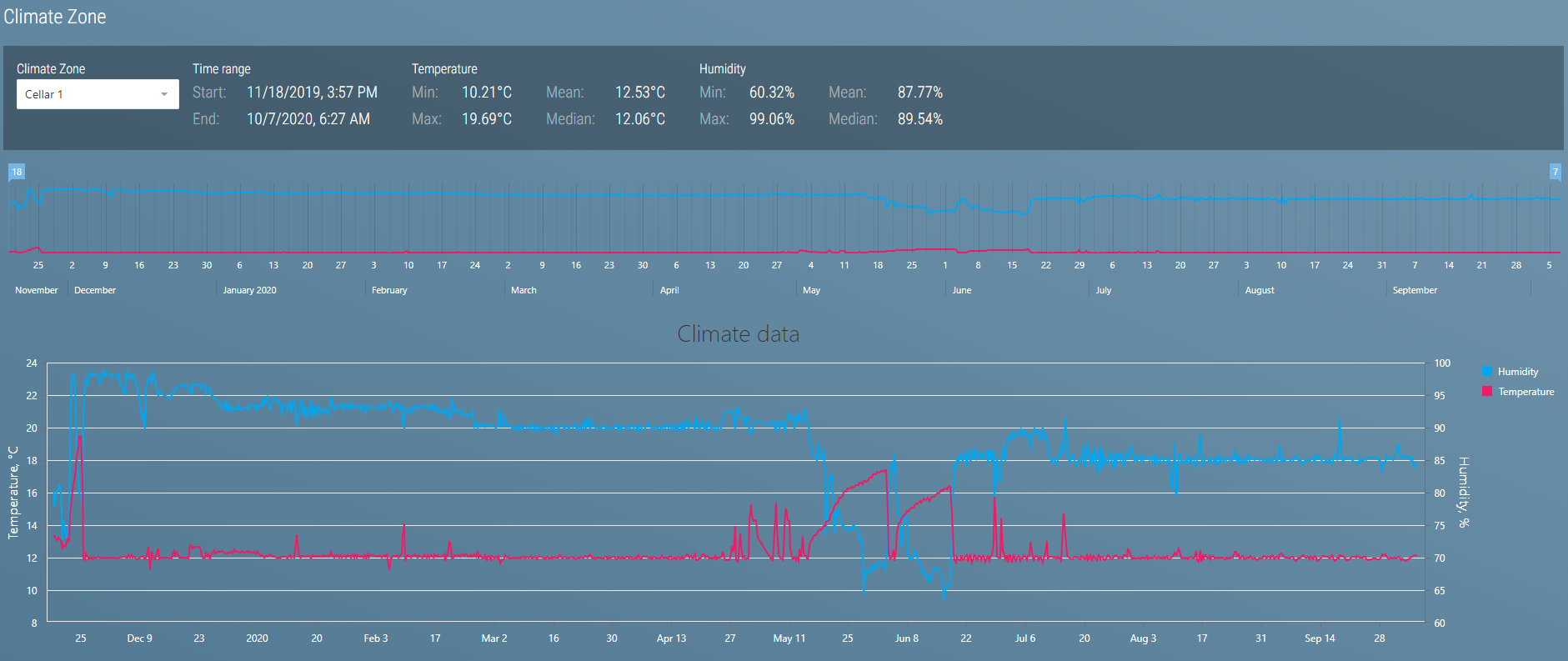
This shows the progression of temperature and humidity in the selected climate zone. The minimum, maximum, average and median values for the selected period are also displayed

The smaller upper diagram represents the entire available development.
You can select a time range here.
Afterwards the values for the large diagram are loaded within that time range.

Row Display
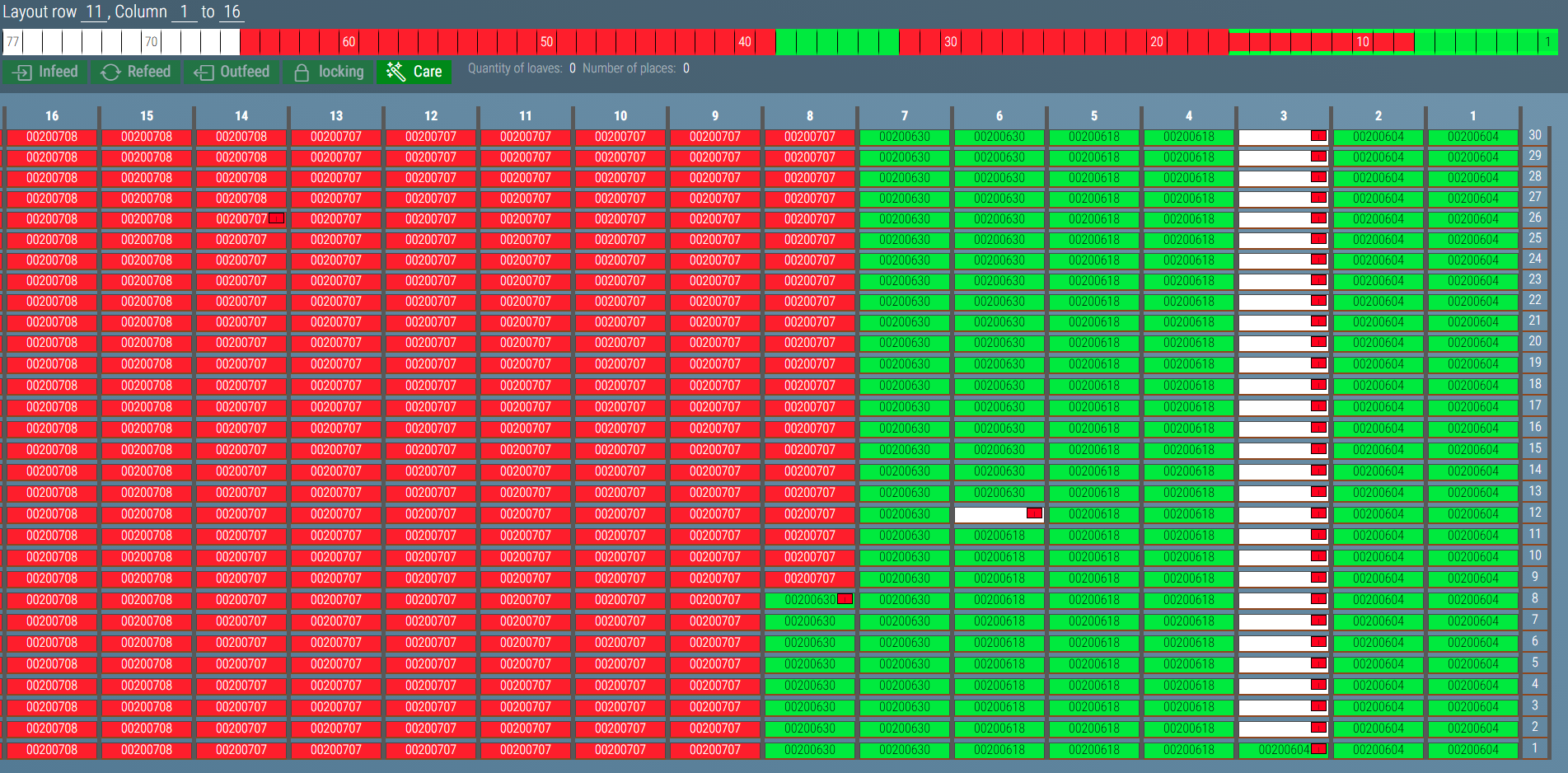 The row display shows each row in the warehouse with the respective storage position. The system displays graphically whether the position is occupied or not.
If a position is occupied, it is colored as defined by the settings and the name or the batch number is displayed.
The row display shows each row in the warehouse with the respective storage position. The system displays graphically whether the position is occupied or not.
If a position is occupied, it is colored as defined by the settings and the name or the batch number is displayed.
Positions can have different statuses. These are displayed graphically:
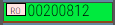 A more detailed description can be obtained from the tool tip that appears when you hover the cursor over the course.
These are the possible statuses:
- RR: Reserved for retrieval from storage
- R-R: Retrieved by robot
- RW: Reserved for board washing
- RP: Reserved for putaway
- R-P: Put in storage by robot
- RTO: Reserved for transfer - original position
- RTT: Reserved for transfer - target position
- RTOT: Reserved for transfer - original position & target position
Select
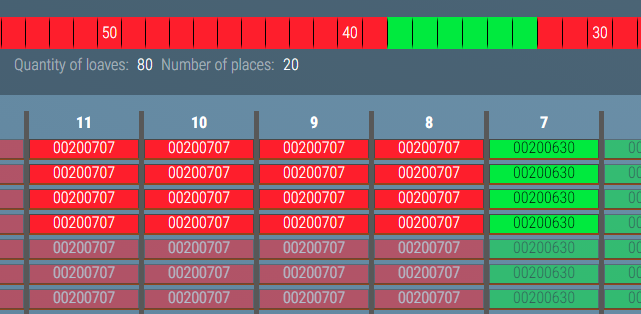
Positions can be selected using the mouse. To do this, simply span a frame around them.
The selection can be extended by pressing the CTRL key.
Then you can simply create new frames or select individual positions.
The selected positions are highlighted in color. In addition, the number of positions or cheeses selected is displayed.
Actions
Various actions can be performed with the selected cheeses

Putaway
If you select only free positions, you can store cheeses at these positions.
A popup appears with the same input options as for Prepare Batch, but the position data and the number of cheeses are already prefilled
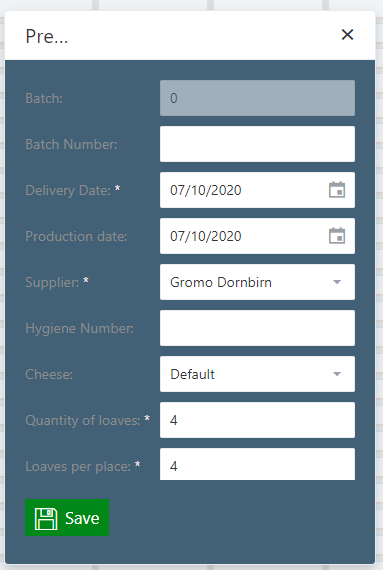 After clicking Save you have a new prepared batch.
Transfer
If you select Transfer  a popup appears where you can enter the number and destination of the transfer as well as other transfer data.
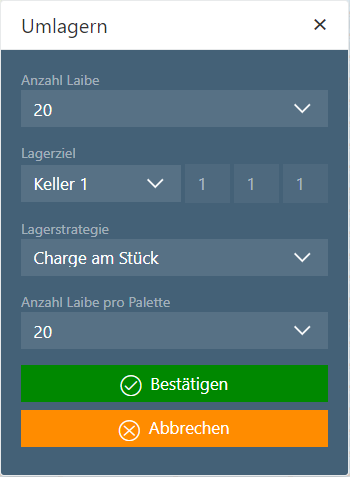
The data has the same function as for Transfer in the tabular cellar overview.
If you click Confirm, the pallets appear on the Transfer view.
Retrieval From Storage
If you select Retrieve 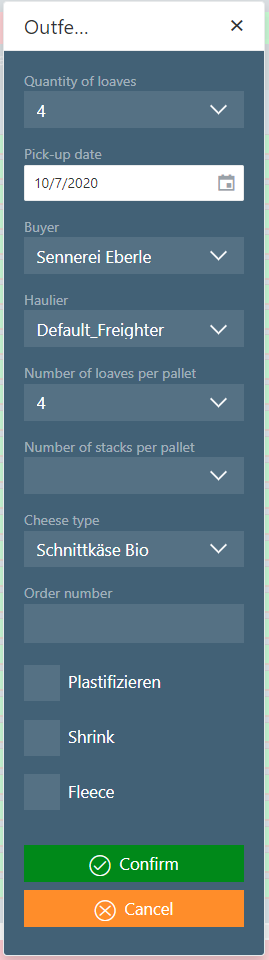 a popup opens where you can enter the information for Retrieval.
The data have the same function as for Retrieval from Storage in the tabular cellar overview.
If you click on Confirm, the pallets appear in the Retrieve view.
Locking
By clicking Lock  , a popup opens where you can select the type of lock.
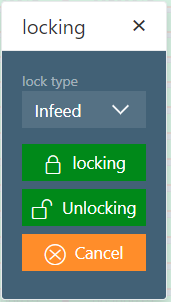
Additionally you can decide whether to lock or unlock the positions. For details on locking positions, please refer to the section Locking.
Treatment Processes
Clicking on Treatment  , opens a popup in which you can enter various treatment options.
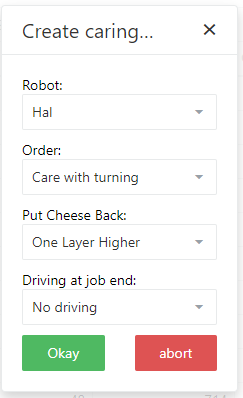
The settings here are the same as those in the Robot Jobs. Only does the location information not have to be entered, because it is already evident which cheeses have to be treated.
Position Details
By clicking on a position, a popup with detailed information is displayed.
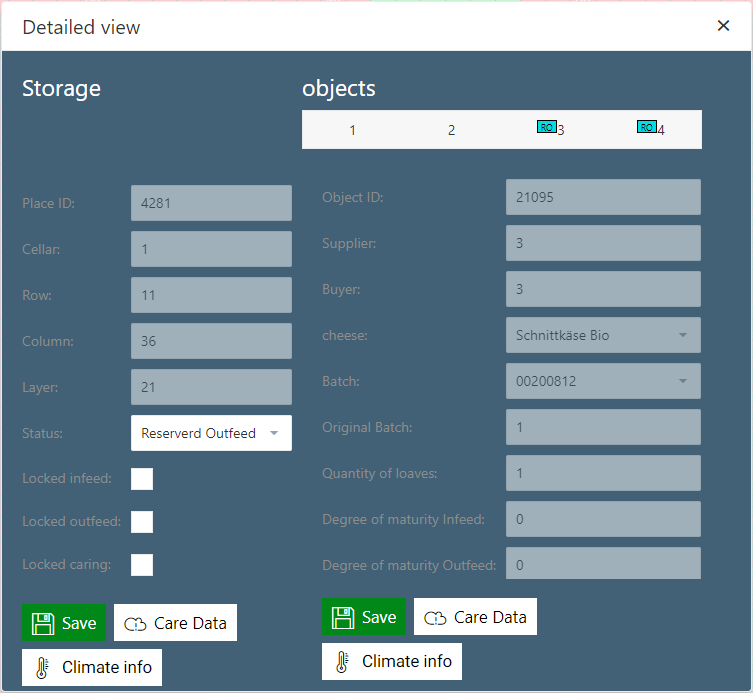
The popup is divided into a left and a right half.
Information and input options for the position are on the left and the information and input options for the individual cheeses are on the right.
Storage Position Details
This shows where the position can be found (cellar, row, column, location). In addition, the status of the space (free, occupied, reserved for removal from storage, etc.) and the blocking status are displayed.
Using the Treatment Data  button you can view the treatment data of the respective position.
Using the optional Climate Info  button you can view the position's climate info.
Note
The climate info button is an optional feature
Cheese Details
Depending on the number of cheeses on the position, there's a corresponding number of tabs to switch between them.

In order to identify the cheeses more easily, the the position status is presented here once again.
Depending on the configuration, different information is displayed for each cheese. Some can also be modified.
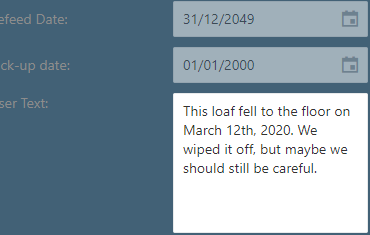
The User Text is an optional function. Here you can save a text for each Cheese. This way, notes can be made for every cheese.
With the Treatment Data button you can look at the position independent treatment data of every cheese.
With the optional Climate Info button you can view the climate info of the cheese independent of its position.
Note
The climate info button is an optional feature
Treatment Details
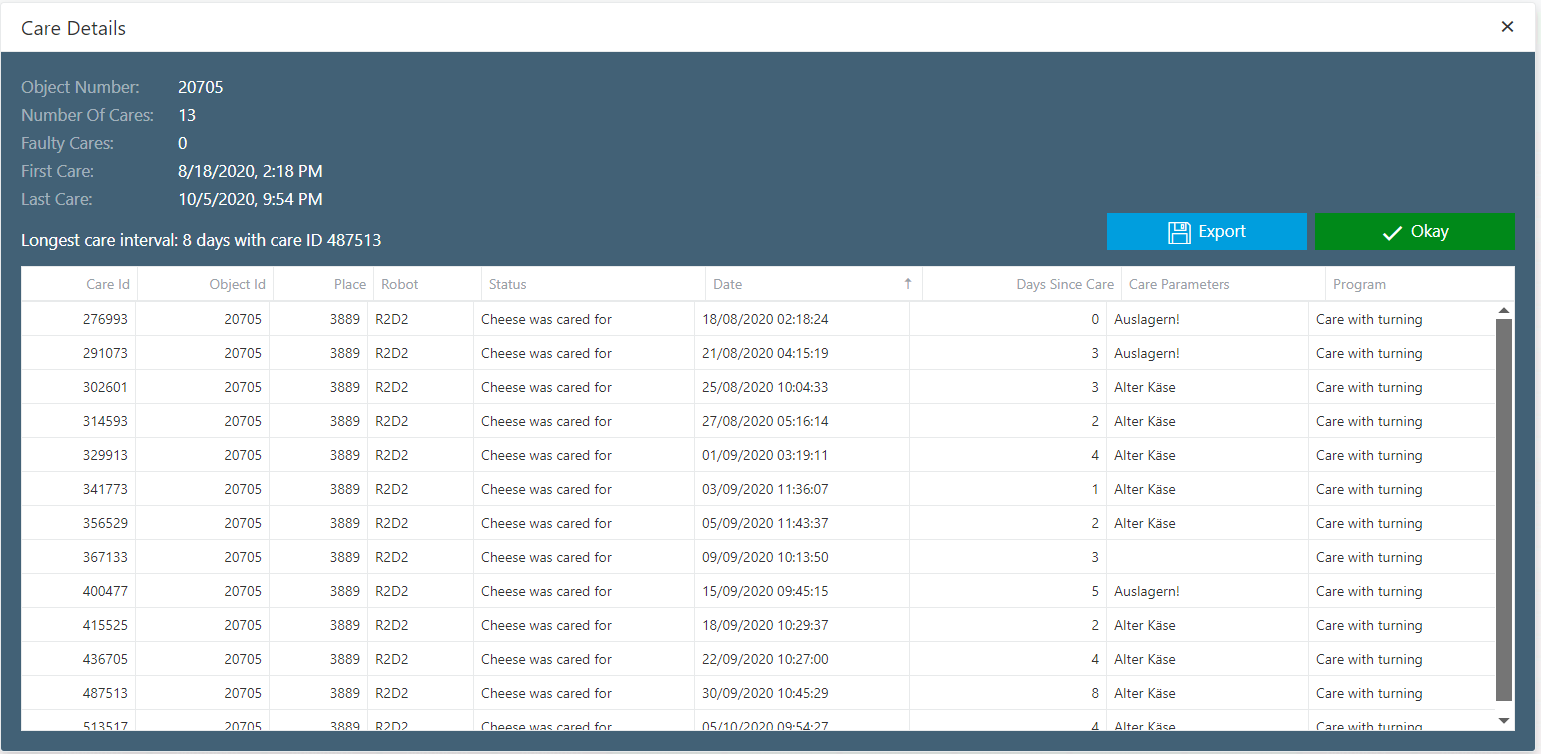
The treatment details show the treatment history of the selected position or cheese. This shows which robot has treated the position/cheese according to which treatment program. If an error occurred, the entry is orange and the corresponding error message is displayed.
Climate Info (optional)
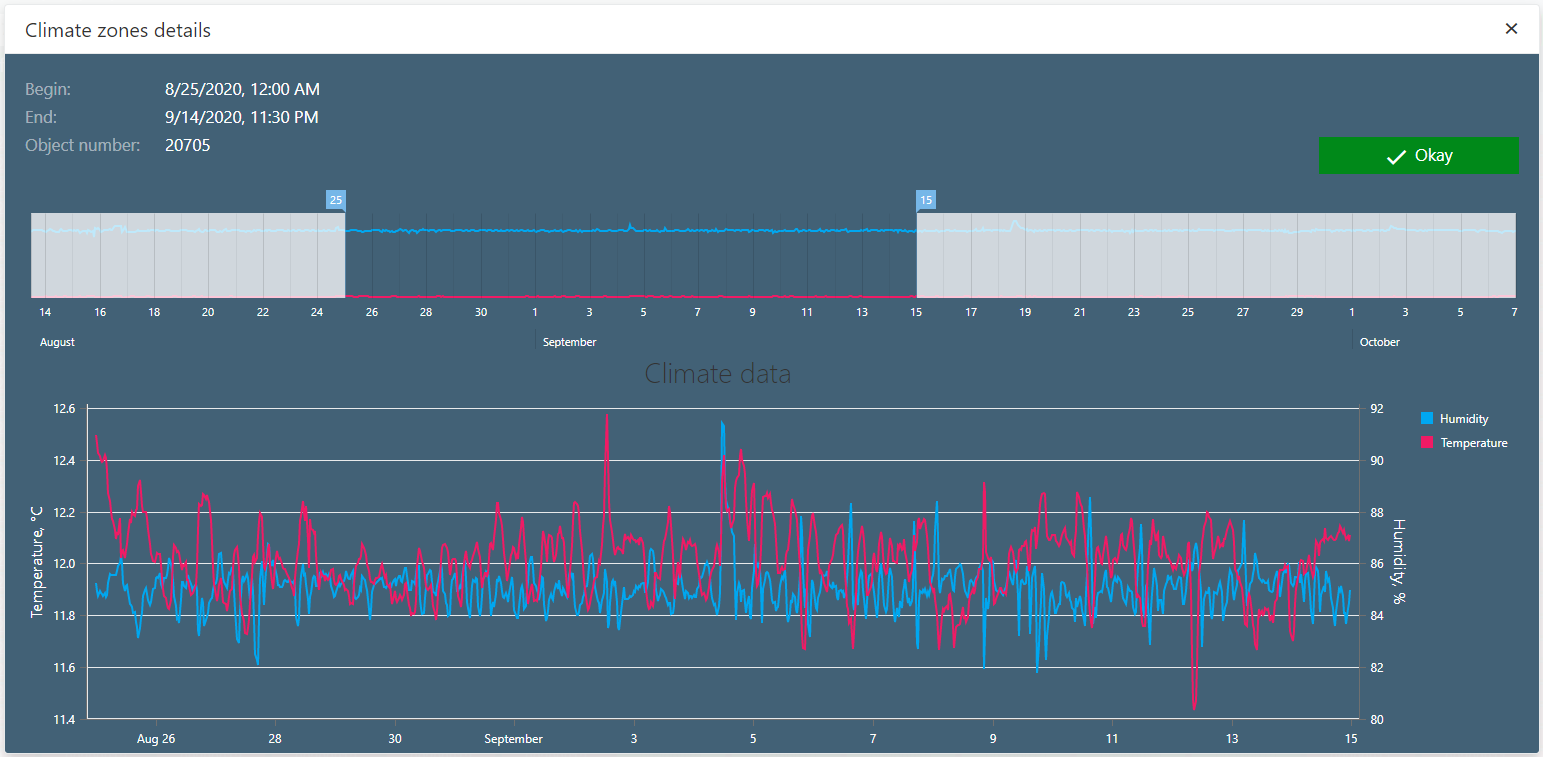
Here, the history of the climate data for the position or the cheese is displayed. It is possible to limit the displayed time range.