Overview
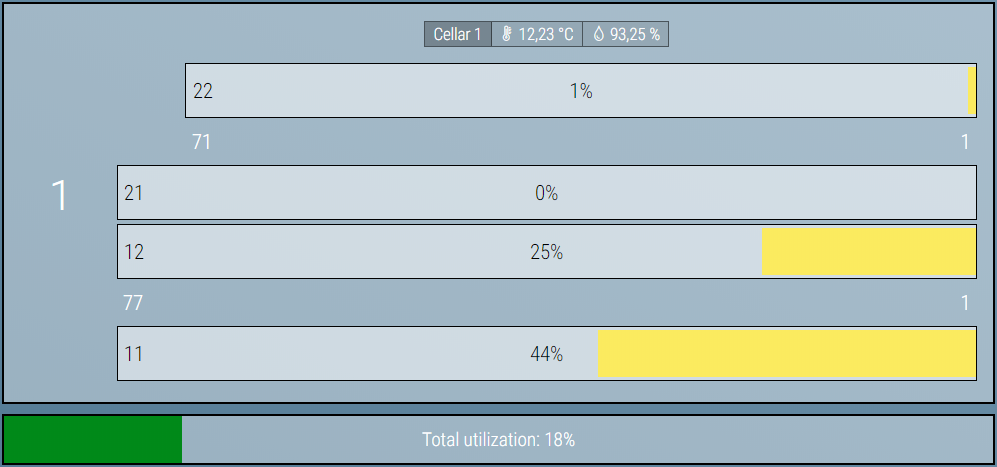
Menu Bar
 The menu bar provides access to all functions in the software. A brief explanation of the individual items is given below.
User
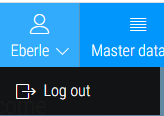
On the far left of the menu bar, the user currently logged in is displayed and can be logged out.
Master Data
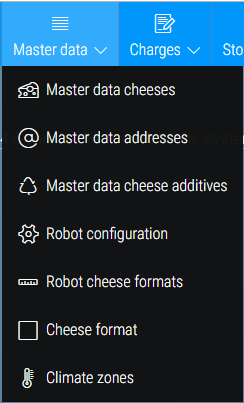
Master data can be entered here. More on this
| Name | Function |
|---|---|
| Cheese | This is where different types of cheese are organized and managed |
| Addresses | This is where suppliers, buyers, etc. are managed |
| Cheese Additive (optional) | This is where cheese additives such as wild garlic, chili etc. are managed |
| Robot Config (administrative) | This is where the treatment robots are managed |
| Robot Cheese Shapes (administrative) | This is where the treatment robots are assigned the cheese shapes they can handle. |
| Cheese Shapes (administrative) | This is where the various cheese shapes are managed |
| Climate Zones (optional, administrative) | This is where the climate zones are managed |
Batches
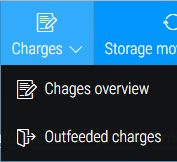
An overview of the batches is available here
| Name | Function |
|---|---|
| Batch Overview | Here all batches, retrieved from stock and currently in stock, are listed |
| Batches Retrieved | Shows retrievals from stock |
Storage Movements
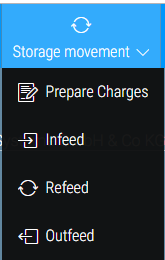
This is where storage, transfer and retrieval are handled.
| Name | Function |
|---|---|
| Prepare batches | Batches are created and prepared for putaway |
| Storage | This is where the putaway and weighing process takes place. |
| Transfer | Cheeses destined for transfer are displayed and confirmed here. |
| Retrieve From Stock | This is where the retrieval and weighing process takes place. |
Treatment
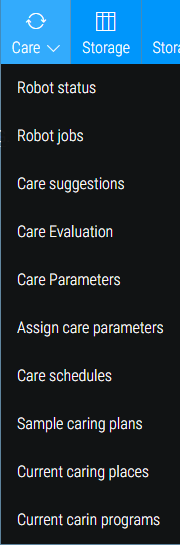
All maintenance and robot-specific functions are located here.
| Name | Function |
|---|---|
| Robot Status | Shows the current status of the robots |
| Robot Jobs | This is where the robot jobs are displayed and new ones can be created |
| Treatment Recommendations | Shows the treatment recommendations |
| Treatment Evaluation | Here, an evaluation of past treatment processes is displayed |
| Treatment Parameters | This is where treatment parameters can be created and managed. |
| Assign Treatment Parameters | Here you can assign various rules to treatment parameters. Note: This function is mutually exclusive with the treatment plans |
| Treatment Plans (optional) | This is where the treatment plans for individual batches are displayed and managed |
| Sample Treatment Plans (optional) | This is where the sample treatment plans are managed |
| Current Treatment Positions (administrative) | Shows the current treatment positions of the robots. |
| Current Treatment Programs (administrative) | Displays the current treatment programs of the robots |
Warehouse
 Here, the warehouse is displayed in tabular form
Cellar Overview
 This provides an overview of the cellars
Evaluations
 Various evaluations can be made here and reports can be printed out.
Confirm board washing (optional)
 The board washing for positions can be acknowledged here. This function is optional.
A click on this button opens the Acknowledge Board Wash popup.
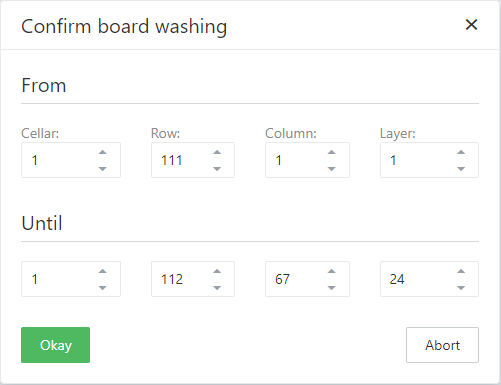
This popup can be used to remove the status 'Locked for board washing' from the storage positions. To do this, a start and a stop position must be selected.
(Un)Locking Positions
 Positions can be locked and unlocked here
A click on this button opens the Lock popup.
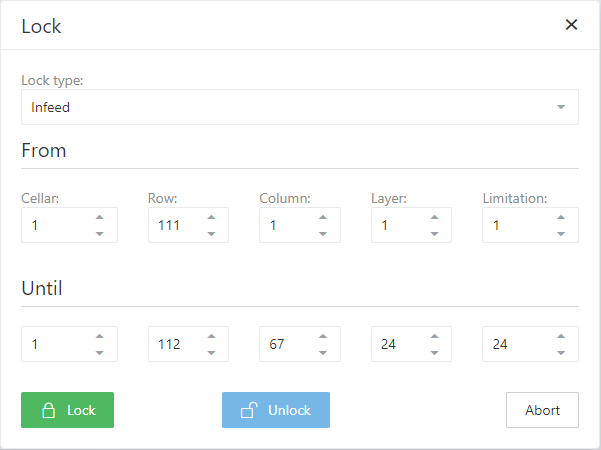
This can be used to lock or unlock positions in the warehouse.
For this purpose, a lock type must be selected and a start and stop position must be entered.
All positions in between are then locked or unlocked.
These are the existing lock types:
- Putaway: Nothing is stored in these positions. This also applies to stock transfers.
- Retrieval: These positions are not taken into account when retrieving from storage. This also applies to stock transfers.
- Treatment: No treatment jobs are generated for these positions
Settings (administrative)
 Various settings can be made and users can be created here
Status Bar (optional)

The status bar provides an overview of the connection status of the connected robots and the alarm status of the robots.
Robots
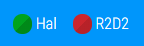
The robots are listed by name. The connection status is displayed in color.
- Green = connected
- Red = not connected
Alarms
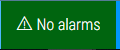

Shows how many alarms are active in total and the alarm text of the most recent alarm is displayed. A click on the element opens the alarm overview.